
Toolbar
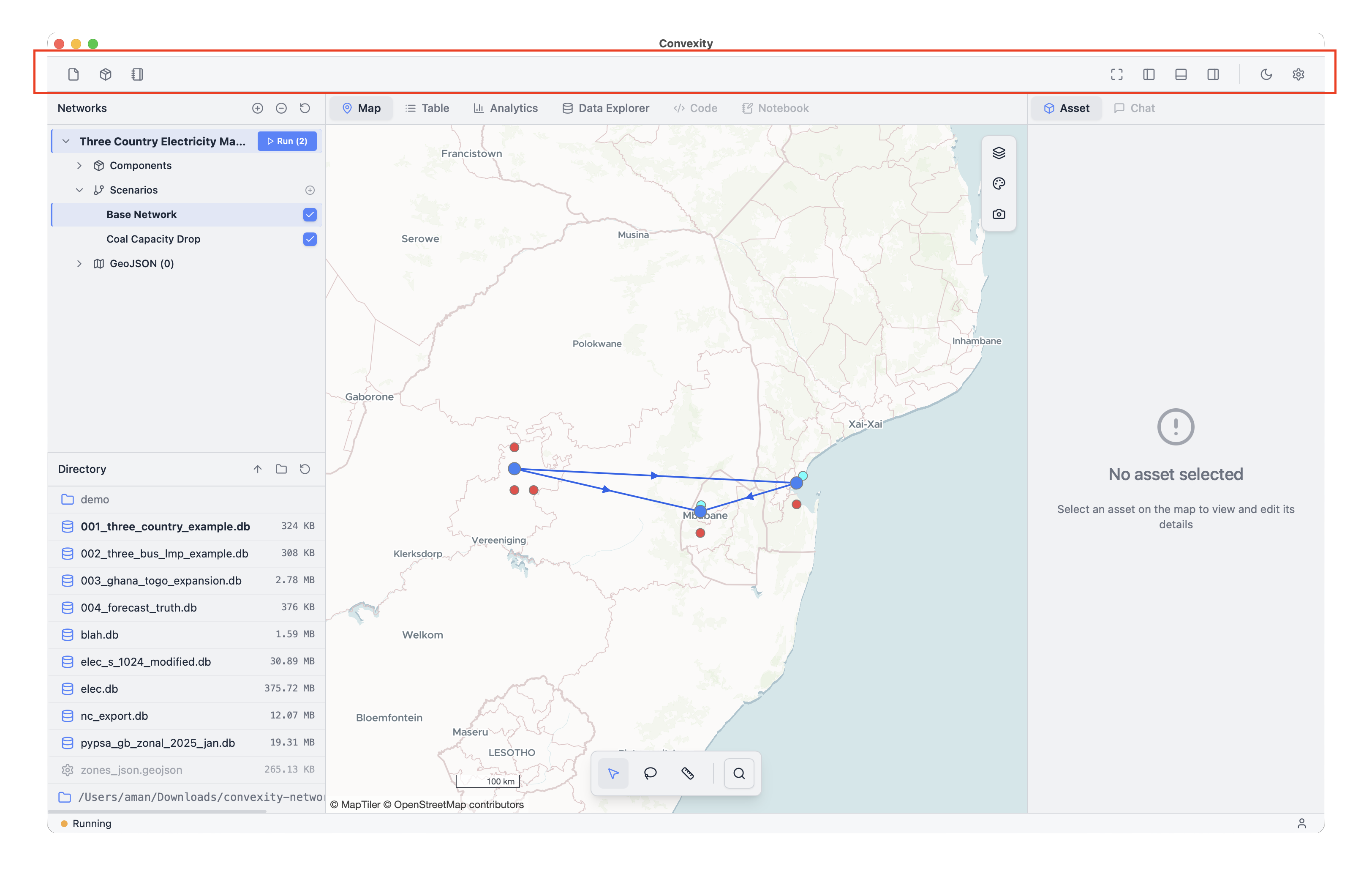
The Toolbar is located at the top of your window and is persistent in all views. It is split into two components: the left-hand side contains actions to assist your modelling workflows, while the right-hand side contains buttons to quickly configure your user settings.
Right-Hand Side
There are six buttons on the right-hand side. The first four allow you to toggle the various panels in the Convexity user interface:
- The first button shows/hides the left, bottom, and right sidebars all at once
- The second button controls the left-hand panel
- The third button controls the bottom panel
- The fourth button controls the right panel
The remaining two buttons on the right-hand side allow you to toggle light/dark modes and access the user settings dialogue.
User Settings
The user settings can be accessed via the gear icon on the far-right of the toolbar.
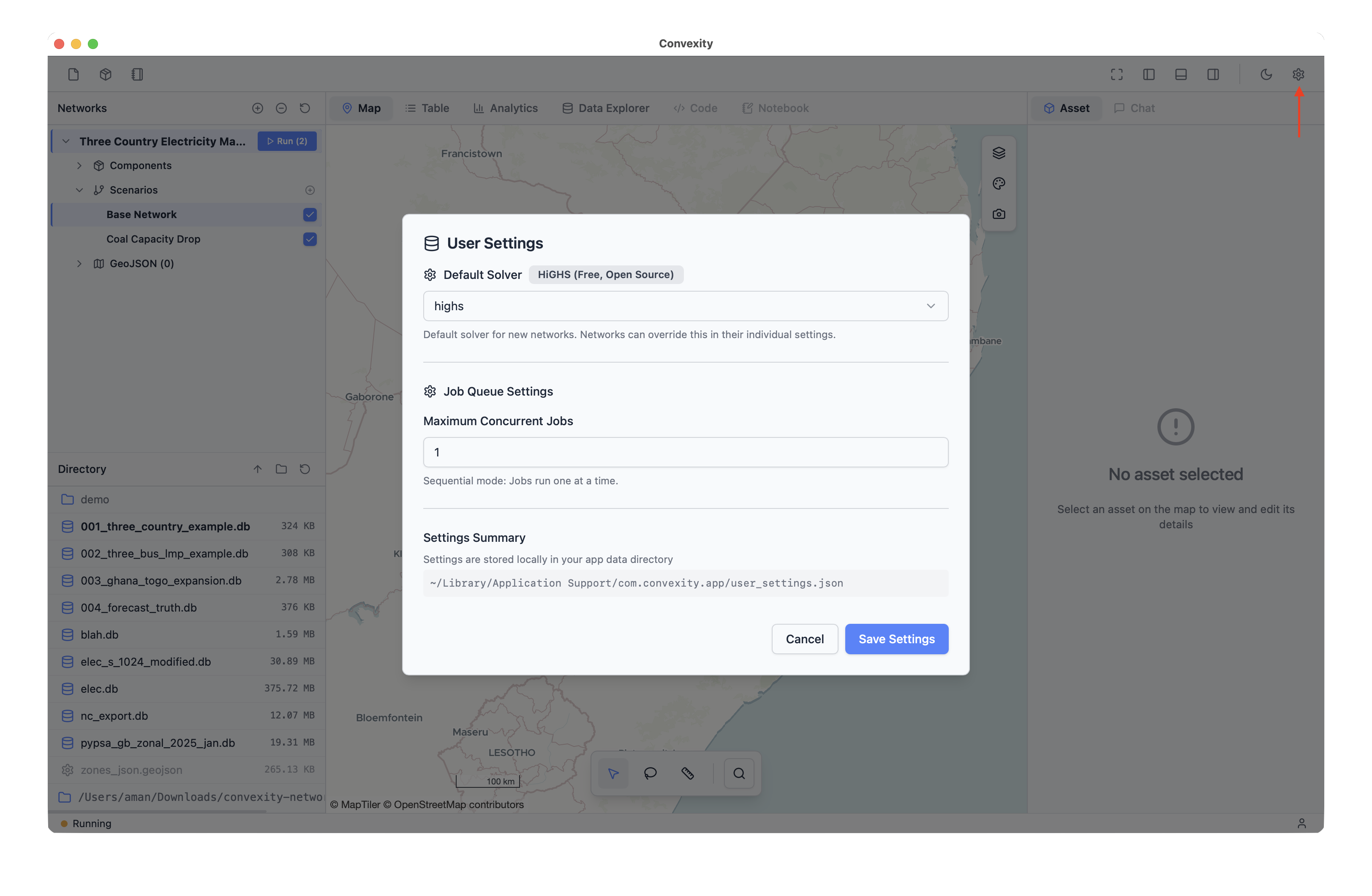
In the user settings, you can set the default solver to use across all of your models. By default, this is set to HiGHS, which is the free and open-source solver packaged with Convexity for all users. However, you can also choose Gurobi or COPT if you have a license and have correctly configured it on your machine.
The Maximum Concurrent Jobs setting controls the number of model runs that can be launched simultaneously on your machine. This feature leverages parallel computing: if your machine has multiple cores, you can run multiple models at the same time.
Finally, the user settings modal displays the path to your user_settings.json file, which can be useful for diagnostics and debugging. We may ask you to send this file to us if you are having issues; otherwise, you don't need to worry about it.
Left-Hand Side
On the left-hand side, there are three buttons:
- File Input/Output (I/O)
- Template Models
- Documentation
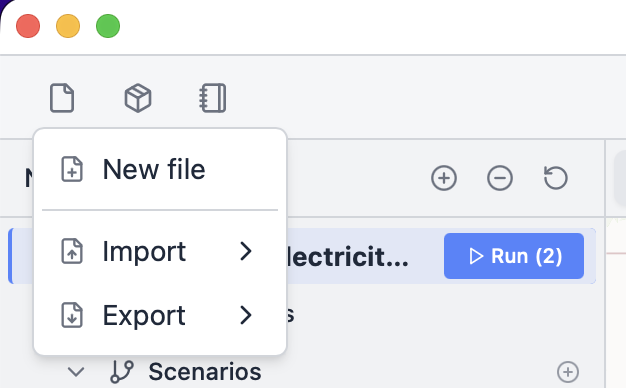
The I/O button allows you to create new Convexity files (New File), as well as import and export models from various sources such as Microsoft Excel workbooks and PyPSA netCDF files. These import and export options are described in more detail in the File I/O section.
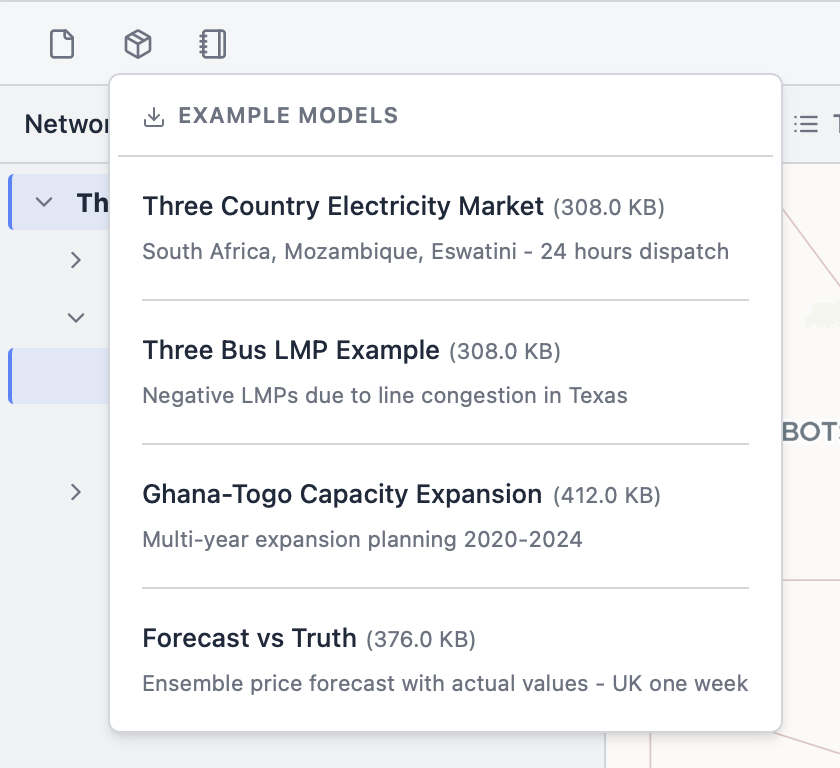
The Example Models button allows you to quickly load various template models to help you get started or experiment with different scenarios and ideas. For example, you may want to test how a novel storage technology might behave in a given system. Rather than modifying your own model and potentially breaking it, you can use a template model to prototype and test the idea before implementing it in your production model.
Finally, the Documentation button opens the Convexity documentation website in your web browser, providing quick access to help and reference materials.