

Tables
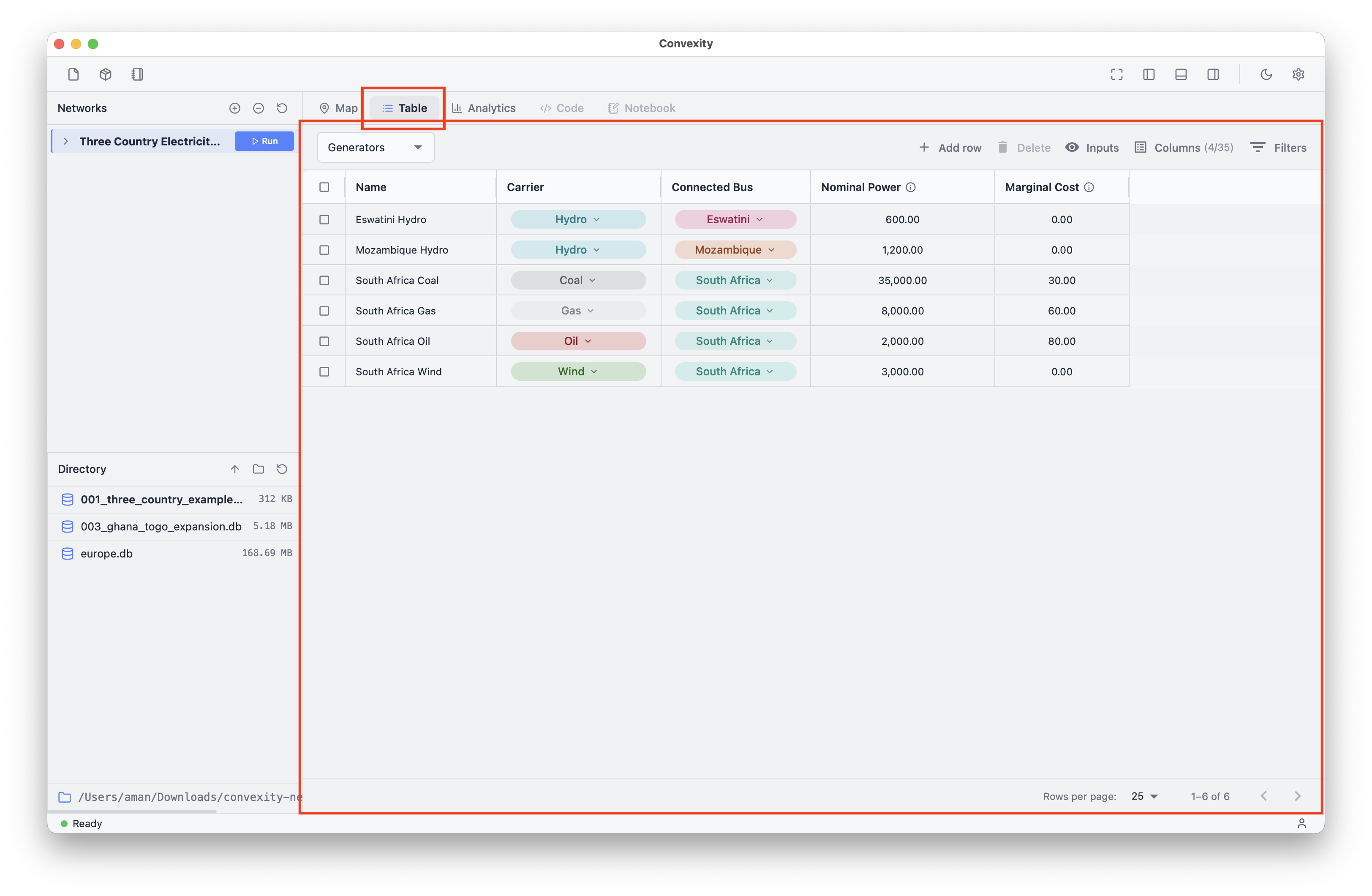
The Tables view is accessible via the central panel of Convexity. It provides a way to interact with your network data in tabular format, as opposed to spatially via the Map view. All cells in the Tables are editable, allowing you to directly modify component attributes and values.
The Tables view provides an alternative way to view and edit your network data that may be more efficient for bulk edits or when working with many components at once. Changes made in the Tables view are immediately reflected in the Map view and vice versa, ensuring consistency across all views of your network.
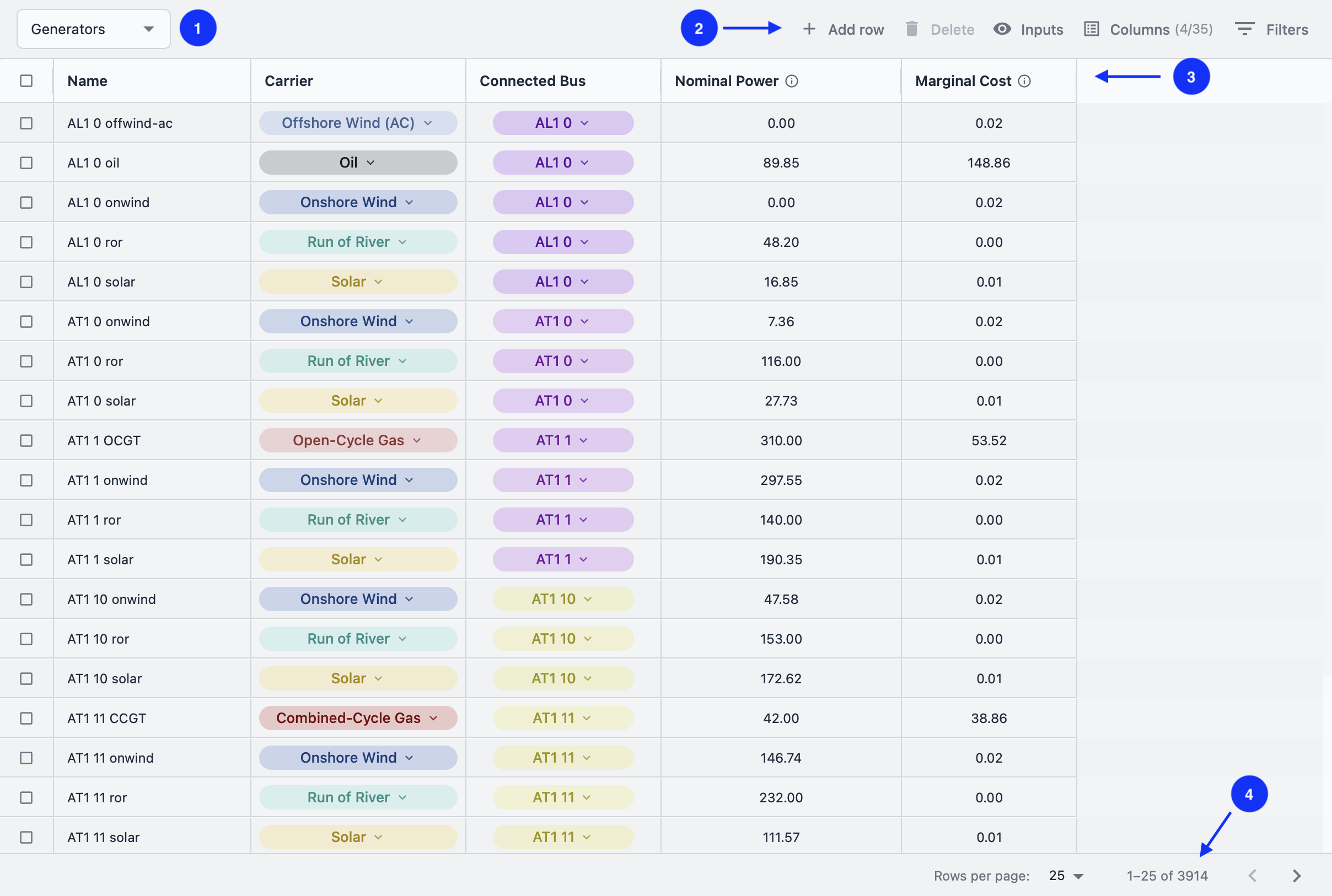
The Tables view is made up of four critical parts (see image above):
Components dropdown 1: Select which component type's table you want to view (e.g., Bus, Generator, Line, Storage Unit, etc.). Each component type has its own table with fields specific to that component.
Actions toolbar 2: Execute multiple actions on your table data, including adding rows, deleting records, toggling between inputs and outputs, managing columns, and applying filters (covered in detail below).
Table header and columns 3: The column headers display all available fields associated with the selected component type. These include both input fields (configurable parameters) and output fields (calculated results from optimisation runs). You can sort columns by clicking on the column headers.
Pagination controls 4: Located in the bottom right corner, these controls allow you to navigate through large tables. Pagination is implemented to maintain computational tractability and ensure smooth performance when working with networks containing many components.
Editing Table Data
All cells in the Tables view are editable. To edit a cell, simply click on it and type your new value. Press Enter or click outside the cell to save your changes. Changes are saved immediately and will be reflected across all views of your network.
You can navigate between cells using the arrow keys on your keyboard. Use Tab to move to the next cell horizontally, and Shift+Tab to move backward. This makes bulk editing more efficient.
Actions
Add row
To add a new component record to your table, click the "Add Row" button. This creates a blank record at the end of your table, which you can then edit to define the new component. You must provide values for all required fields (typically marked with an asterisk or highlighted) before the record can be saved.
Delete
To delete one or more records from your table, select them using the checkbox in the leftmost column of each row. Once selected, click the Delete button to remove the records. Warning: This is a permanent deletion and cannot be undone. Make sure you want to delete the selected records before confirming the action.
Inputs/Outputs toggle
Components have both input fields (parameters you configure) and output fields (calculated results from optimisation runs). Use the Inputs/Outputs toggle to switch between viewing input fields, output fields, or both. This is particularly useful when you want to focus on either configuration or results analysis.
Columns
The Columns button opens a dialog that allows you to show or hide individual fields or entire groups of component attributes. This customisation helps improve productivity by focusing on only the fields you need:
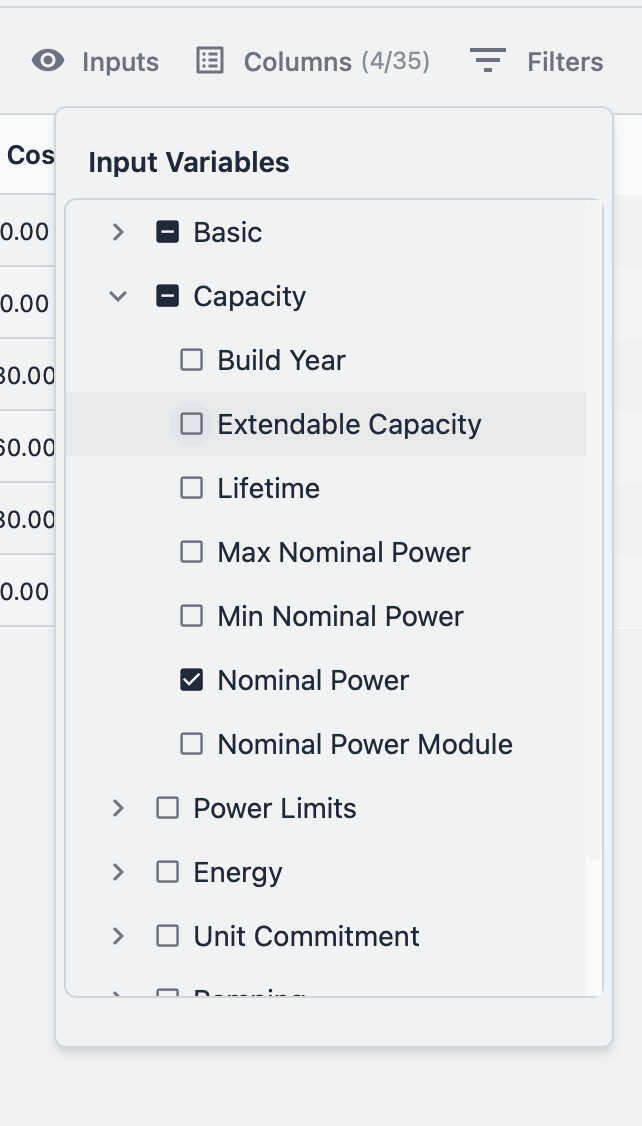
You can expand or collapse attribute groups to show or hide multiple related fields at once. This is especially helpful when working with components that have many attributes, as it allows you to create a simplified view tailored to your current task.
Filters
The Filters option allows you to dynamically filter your table data based on column values. You can apply filters to string, float, and integer fields. Multiple filters can be applied simultaneously, and all filters work together (using AND logic) to narrow down your view:
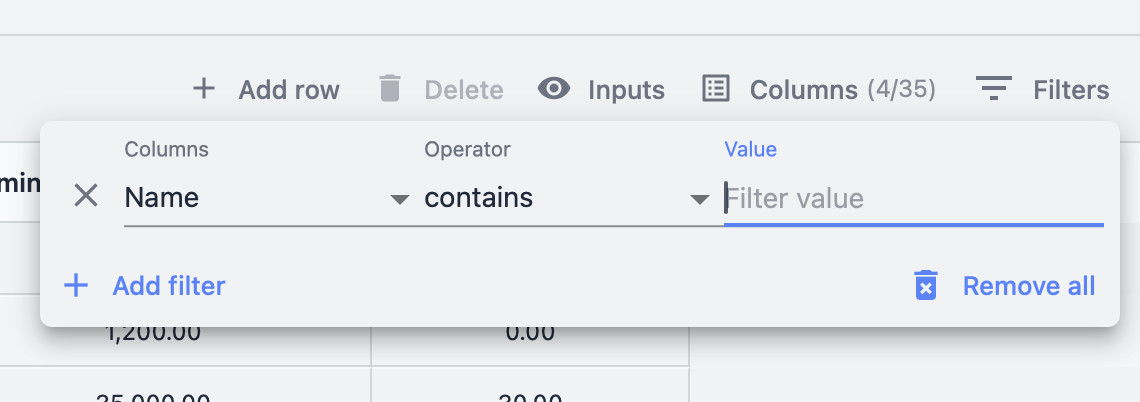
For string fields, you can filter by exact match or partial text. For numeric fields (floats and integers), you can use comparison operators such as greater than, less than, or equals. Filters are applied in real-time as you type, making it easy to quickly find specific records in large tables.