

Spatial interactions
The spatial interactions toolbar provides tools for selecting and searching network components on the map. These tools help you interact with your network data spatially, allowing you to select components by clicking, drawing selections, or searching for specific assets or locations.
Spatial analysis toolbar
Select
The Select tool allows you to click on individual components on the map to select them. Once selected, component details appear in the Asset Viewer (right panel), where you can view and edit component attributes. This is the default interaction mode when working with the map.
Lasso Select
The Lasso Select tool allows you to draw a freeform selection area on the map by clicking and dragging. All components within the drawn area will be selected. This is particularly useful when you want to enable/disable multiple components in one go.
Measure
The Measure tool allows you to measure straight lines or paths by drawing directly on the map canvas. This is particularly useful when you want to size a new transmission or distribution line, as well as for site selection of assets (e.g., ensuring your asset is within a safe distance from population centres).
Search
The Search tool helps you quickly find specific components or locations in your network. The search functionality is divided into two categories:
Assets
Search for network components by name or ID. This allows you to quickly locate and select specific buses, generators, lines, loads, or other components in your network. Simply type the component name or identifier in the search field, and the map will automatically zoom to and highlight the matching component.
Locations
Search for geographic locations by place name, coordinates, or address. This is useful for orienting yourself on the map or finding specific geographic areas within or near your network. The map will pan and zoom to the selected location, helping you understand the spatial context of your network.
Right-click interactions
Right-clicking on the map provides context-sensitive menus that offer quick access to common actions. The menu options differ depending on whether you click on empty space or on a specific component.
Right-clicking on empty space
When you right-click on an empty area of the map (where no components are located), a context menu appears with the following options:
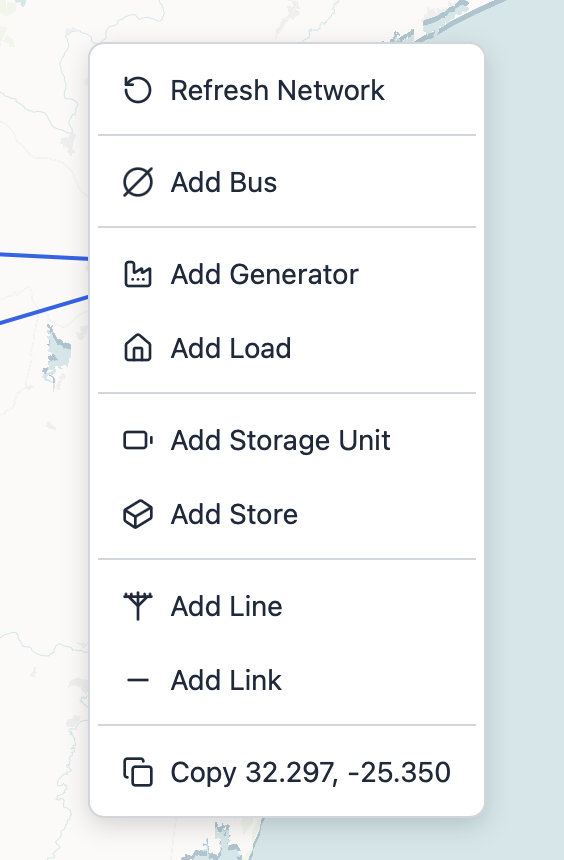
Refresh Network: Refreshes the network data currently displayed on the map. This is useful if there's been a delay in updating the view after making changes to your network.
Add Component: Allows you to add new components directly to the map. You can choose from various component types including Bus, Generator, Load, Line, Link, Storage Unit, and more. Selecting a component type will place it at the location where you right-clicked.
Right-clicking on components
When you right-click directly on a component (Bus, Generator, Line, etc.) on the map, a different context menu appears with component-specific actions:
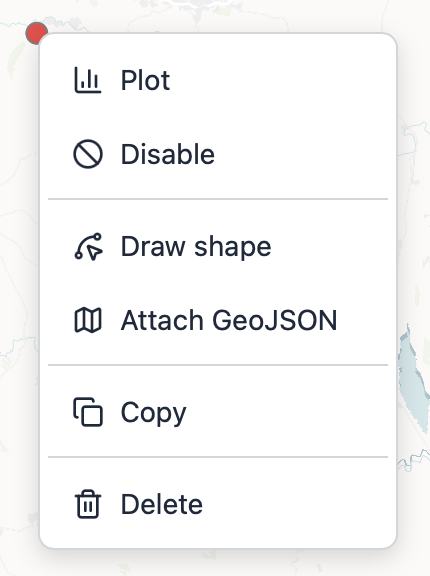
The available options include:
Generate time series plots: Opens a time series visualization for the selected component, showing how specific attributes change over time. This is useful for analyzing generation patterns, demand curves, or other time-varying data.
Disable/Enable: Toggles the component's active status. Disabled components are excluded from optimization runs but remain visible on the map for reference. This is useful for sensitivity analysis or scenario testing.
Draw shape: Allows you to define or edit the component's geographic shape. For point components (like buses), you can draw a polygon representing a service area. For line components (transmission lines), you can draw the actual line path. This helps create more accurate spatial representations of your network.
Copy: Creates a duplicate of the selected component at the same location. You can then move the copy to a new location if needed. This is useful for quickly creating similar components without re-entering all the attributes.
Delete: Permanently removes the component from your network. Warning: This action cannot be undone, so use with caution.