

Asset Viewer
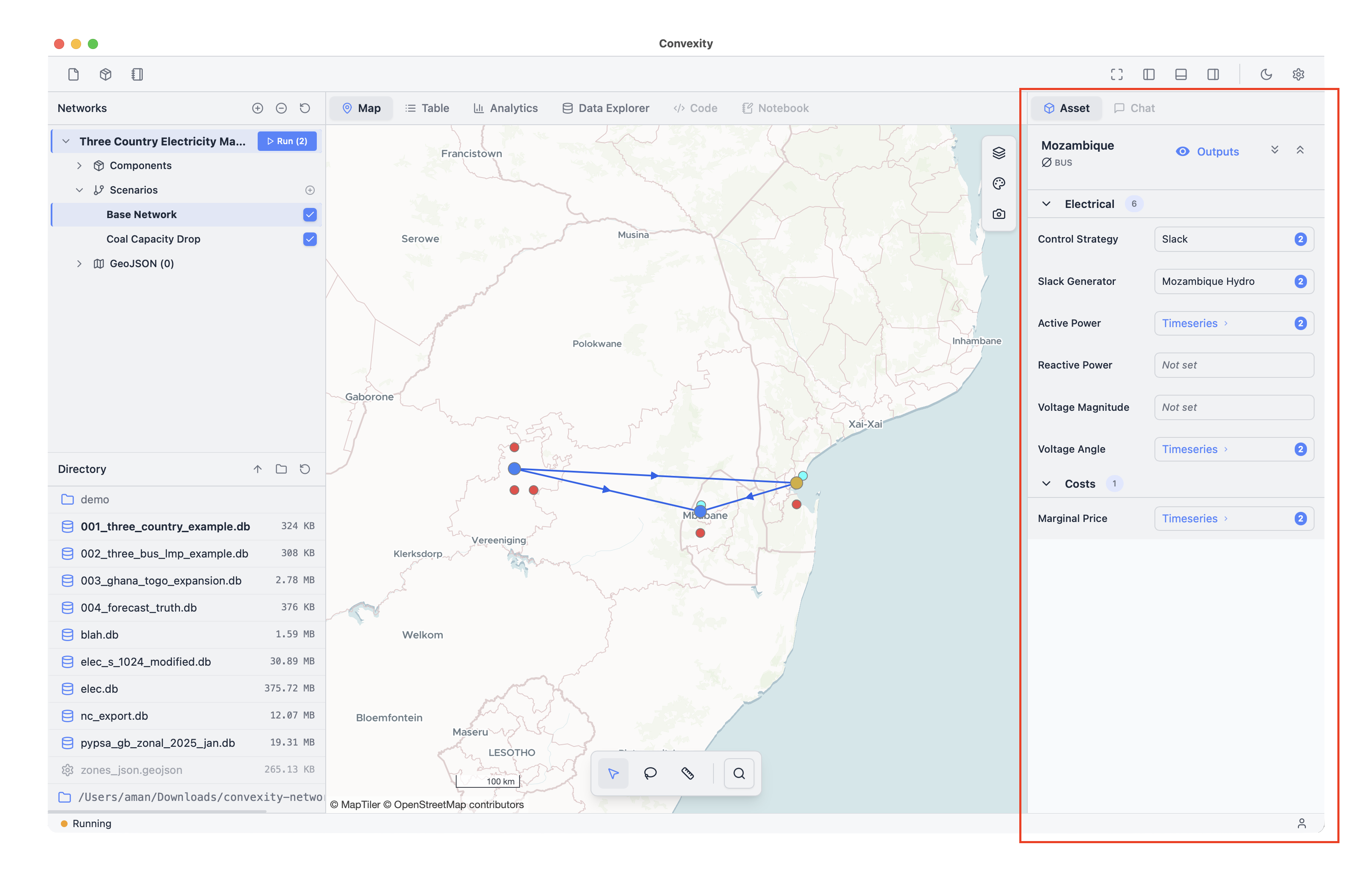
The Asset Viewer is located in the right-hand sidebar and is accessed by clicking a component in the map tab. It lets you view and edit attributes for individual components in your network.
Newly created components are automatically opened in the Asset Viewer to let you set their attributes.
There are several different attribute types:
- Strings (text, like asset names)
- Static values (numbers, like power capacities in MW)
- Timeseries (values for each timestep, like renewable capacity factors)
- Dropdowns (carriers, connected buses, etc.)
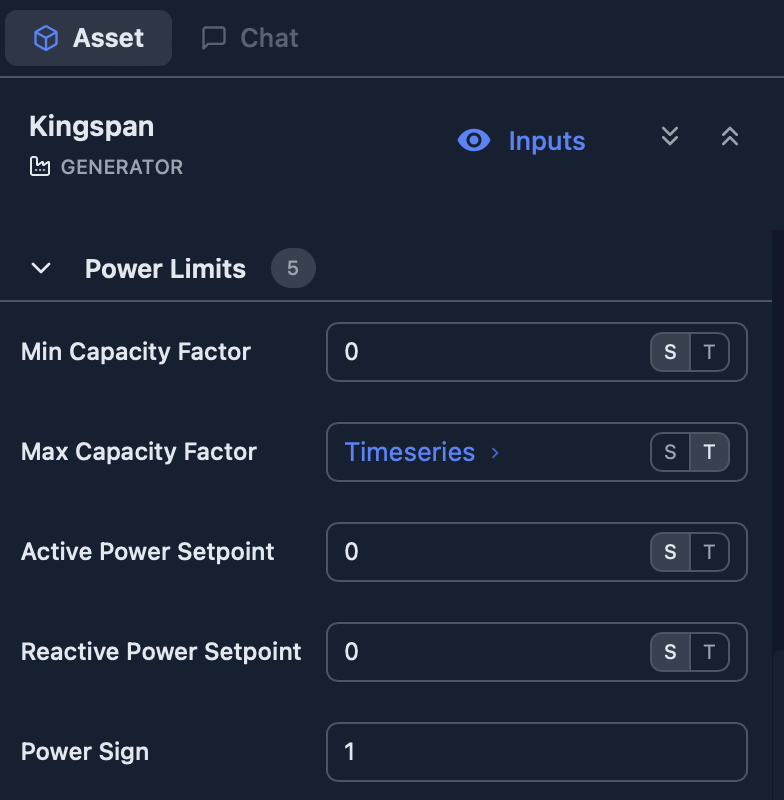
Some attributes can be set as either static values or timeseries values. You can toggle between the two modes using the S and T toggle button in the relevant attribute cells:
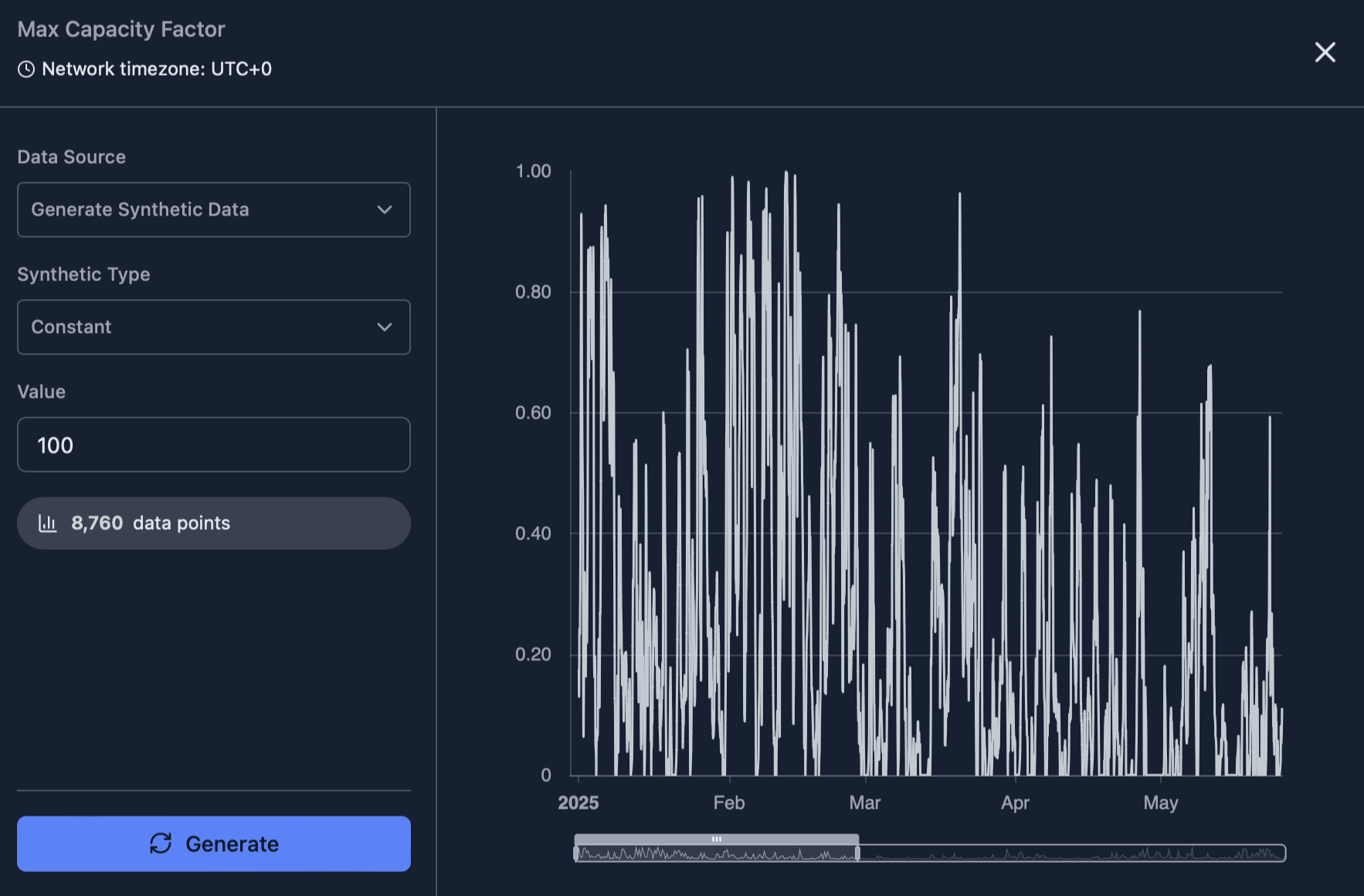
Clicking the Timeseries > link for an attribute set to timeseries mode opens the Timeseries Editor, which lets you view and edit the data:
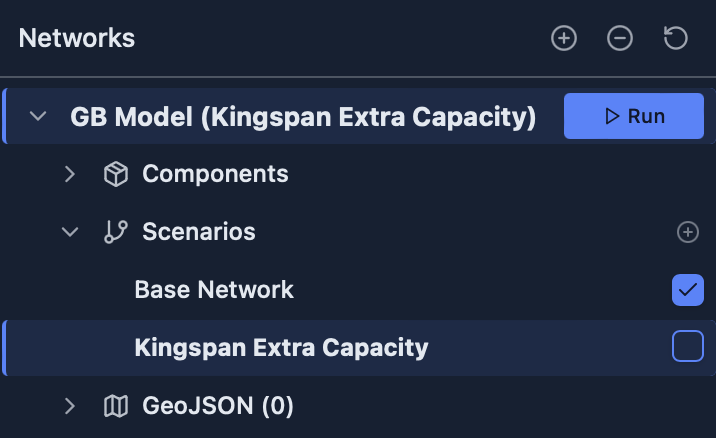
You can also set scenario-specific values in the Asset Viewer. Scenarios can have different attribute values (costs, capacities, etc.) from each other, but all scenarios in one network share the same assets and topology. Each network has a "Base Network" scenario by default, which contains all the base values for each attribute.
When a scenario is selected in the Network Tree in the top left of the screen, any edits you make in the Asset Viewer will apply to that scenario.
Once you have set a scenario-specific value, a counter will appear next to the attribute in the Asset Viewer, displaying how many scenarios have different values for that attribute:
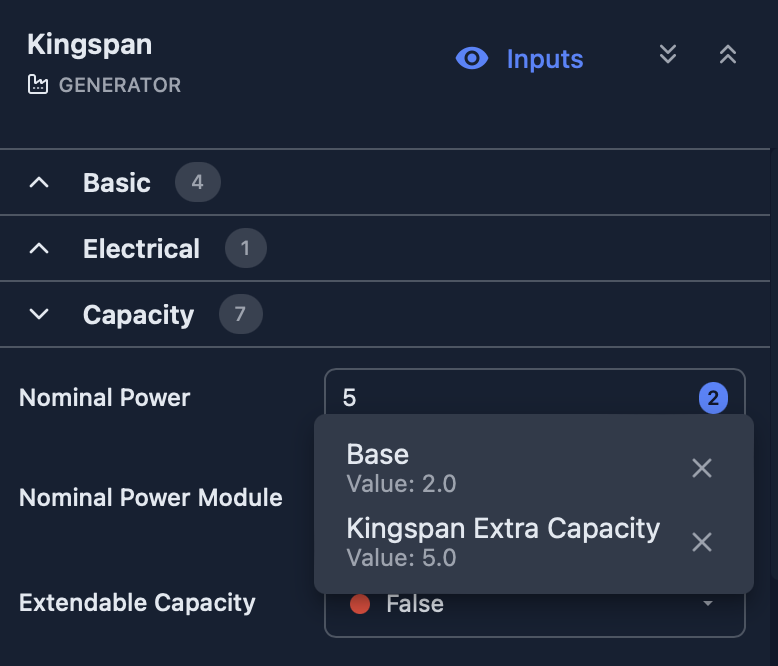
Clicking the counter opens a dropdown that lists the different values in each scenario. Scenarios function as overrides to the Base Network value. For example, in the screenshot above, the "Kingspan" generator has a higher capacity in the "Kingspan Extra Capacity" scenario, but it inherits the default Base Network values for all other attributes.